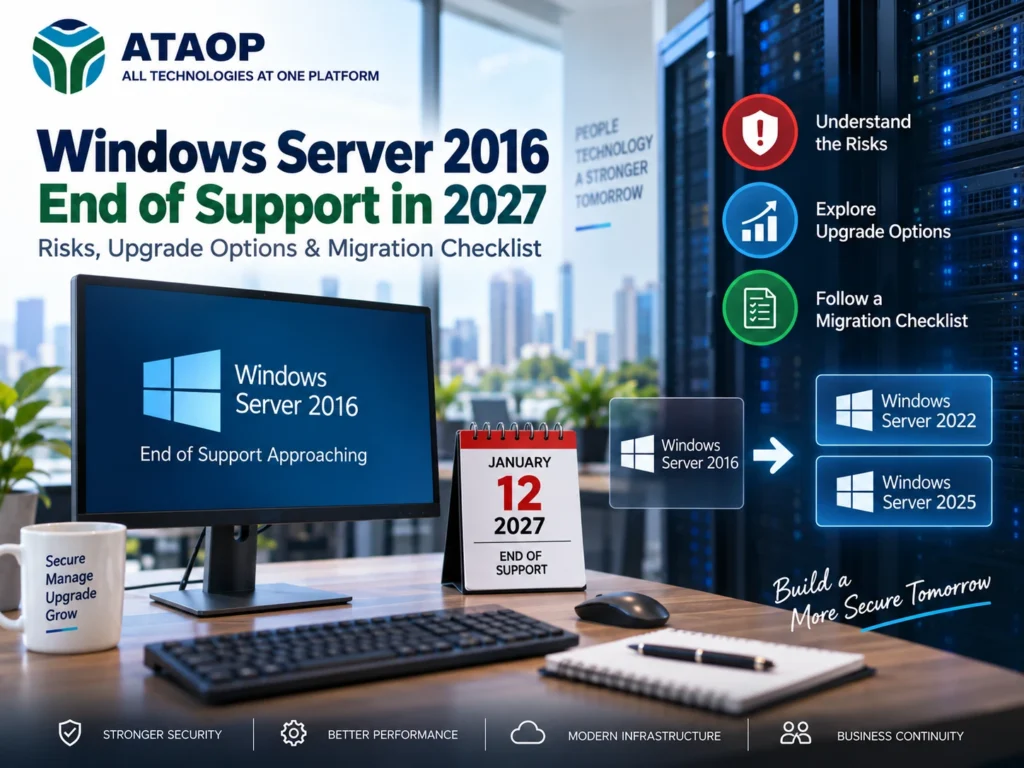
Windows Server 2016 has supported business IT infrastructure for years, powering Active Directory, file sharing, enterprise applications, databases and virtualized environments. However, organizations still relying on this operating system are approaching an important deadline.
Microsoft Windows Server 2016 extended support ends on January 12, 2027. After this date, Microsoft will no longer provide regular security updates or standard support for the operating system, unless an applicable extended security update arrangement is available.
For businesses running critical applications, delaying an upgrade can increase cybersecurity risks, compatibility challenges and operational costs.
Whether you manage a small office server or enterprise infrastructure, planning your Windows Server 2016 migration before the deadline can help reduce downtime and avoid unnecessary complications.
This guide explains the end-of-support timeline, potential security risks, upgrade options, migration planning and a practical checklist for businesses preparing to modernize their Windows Server environment.
When Does Windows Server 2016 Support End?
Microsoft follows a lifecycle policy that determines how long its operating systems receive updates and technical support.
Windows Server 2016 has two major support phases:
| Support milestone | Date | Status |
| Initial release | October 15, 2016 | Released |
| Mainstream support ended | January 11, 2022 | Completed |
| Extended support ends | January 12, 2027 | Upcoming |
During extended support, Windows Server 2016 continues to receive applicable security updates, but regular feature improvements and mainstream support have already ended.
After January 12, 2027, organizations should not assume that newly discovered vulnerabilities will receive security patches through the normal update channel.
Important: End of support does not mean your server will automatically shut down. Existing installations may continue operating, but the security and maintenance risks increase over time.
What Happens When Windows Server 2016 Reaches End of Life?
The term Windows Server 2016 end of life (EOL) is commonly used to describe the end of Microsoft’s supported product lifecycle.
For organizations, the consequences extend beyond software updates.
1. Increased Cybersecurity Risks
Unsupported operating systems can become more vulnerable as newly discovered security weaknesses remain unpatched.
Servers exposed to external networks, remote access services or poorly controlled internal environments may face additional risk.
Businesses should review firewall configuration, endpoint protection, administrator privileges and network segmentation as part of their migration planning.
2. Application Compatibility Problems
Business applications evolve alongside operating systems.
Over time, newer ERP, CRM, accounting, database and security applications may stop supporting Windows Server 2016.
This can limit software upgrades and create difficulties when integrating modern business systems.
3. Compliance and Audit Challenges
Organizations handling sensitive information may need to demonstrate that critical systems are maintained on supported platforms.
Running an unsupported operating system can complicate security audits, customer requirements and regulatory compliance assessments.
The exact implications depend on the applicable standards, contracts and industry requirements.
4. Higher Maintenance Costs
Older server environments may require additional troubleshooting, specialized expertise and temporary workarounds.
Hardware replacement and application upgrades can also become more difficult when systems depend on outdated drivers or software.
Proactive modernization is often easier to manage than an emergency migration after a major failure.
Should You Upgrade Windows Server 2016 Before 2027?
For most organizations, planning an upgrade before the January 2027 deadline is advisable.
However, the migration schedule should reflect the server’s actual role and business importance.
For example, upgrading a standalone file server may be relatively straightforward compared with migrating a domain controller, SQL Server database or application server supporting multiple departments.
Before making changes, identify:
- Server roles and installed applications
- Hardware and virtualization requirements
- Active Directory dependencies
- Storage capacity and performance
- Backup and recovery arrangements
- Licensing requirements
- Acceptable business downtime
A structured Windows Server upgrade assessment helps determine the safest migration approach.
Windows Server 2016 Upgrade Options
Businesses have several options when replacing Windows Server 2016.
Option 1: Upgrade to Windows Server 2022
Windows Server 2022 is an established platform for organizations that require a supported Windows Server environment.
It offers modern security capabilities, updated networking functionality and support for many enterprise workloads.
This option may be suitable when existing applications are certified for Windows Server 2022 but have not yet been validated for newer versions.
However, organizations should consider the remaining product-support lifecycle when making long-term infrastructure investments.
Option 2: Migrate to Windows Server 2025
Windows Server 2025 is another option for businesses planning longer-term infrastructure modernization.
It introduces newer security, identity and virtualization capabilities while providing a more recent support lifecycle.
Organizations considering Windows Server 2016 to 2025 migration should first verify application compatibility, hardware requirements, drivers and supported migration paths.
A direct in-place upgrade may be technically supported in some scenarios, but that does not mean it is the best approach for every production workload.
Option 3: Move to a Virtual Server Environment
Businesses operating older physical servers may consider migrating workloads into virtual machines.
Platforms such as Hyper-V, VMware or Proxmox can support virtualized server infrastructure, subject to compatibility and licensing requirements.
Potential advantages include improved hardware utilization, easier workload provisioning and more flexible infrastructure management.
However, virtualization alone does not resolve operating-system end-of-support risks. A Windows Server 2016 virtual machine still needs an appropriate upgrade or replacement plan.
Option 4: Consider Cloud or Hybrid Infrastructure
Some workloads may be suitable for migration to cloud-based infrastructure.
Depending on business requirements, organizations may consider Azure virtual machines, hosted servers or a hybrid environment combining onsite and cloud resources.
Cloud migration can provide flexibility, but businesses must evaluate ongoing costs, application dependencies, network connectivity, data security and recovery requirements.
The right approach depends on the workload rather than simply choosing the newest technology.
Windows Server 2016 Migration Checklist
Use this checklist before upgrading a production server.
Phase 1: Assess Your Existing Infrastructure
- Identify all Windows Server 2016 installations.
- Record server roles, applications and dependencies.
- Check CPU, RAM, storage and hardware compatibility.
- Review Active Directory, DNS and DHCP configurations.
- Verify software vendor support for the target operating system.
- Review Windows Server licensing and Client Access Licenses (CALs).
Phase 2: Prepare Backup and Recovery
- Create a complete server backup.
- Verify that important data can be restored.
- Back up application configurations and databases.
- Document IP addresses, network settings and user permissions.
- Prepare a tested rollback or recovery plan.
- Schedule a maintenance window.
Phase 3: Select the Migration Method
| Migration method | Suitable scenario |
| In-place upgrade | Compatible, nonclustered server with supported roles |
| Clean installation | Rebuilding infrastructure on a fresh operating system |
| Side-by-side migration | Moving services to a separate server with controlled cutover |
| Physical-to-virtual migration | Replacing older physical infrastructure |
| Cloud migration | Moving compatible workloads to cloud infrastructure |
Microsoft supports direct, media-based in-place upgrades from Windows Server 2016 to Windows Server 2025 for eligible systems. However, it recommends deploying new domain controllers and demoting older ones instead of using in-place upgrades for Active Directory Domain Services.
Phase 4: Test and Complete the Migration
- Test the migration in a non-production environment where possible.
- Confirm application functionality.
- Verify Active Directory authentication and Group Policy.
- Check DNS resolution and network connectivity.
- Validate shared folders and file permissions.
- Test backup and recovery on the new environment.
- Review security policies and firewall rules.
- Monitor server performance after migration.
- Decommission old servers only after successful validation.
How Much Does Windows Server 2016 Migration Cost?
The cost of upgrading Windows Server 2016 depends on the existing infrastructure, target operating system and complexity of the migration.
Key factors include hardware upgrades, Windows Server licensing, CAL requirements, application compatibility testing, engineering effort, data migration, backup infrastructure and downtime planning.
A small standalone file server will generally require a different migration approach from an environment running multiple domain controllers, databases and virtual machines.
Businesses should request a detailed assessment rather than relying on a fixed migration price without evaluating their infrastructure.
Can You Continue Using Windows Server 2016 After January 2027?
Yes, existing installations may continue running. However, using an unsupported operating system without additional protection introduces security and operational risks.
Microsoft has announced Extended Security Updates (ESU) for Windows Server 2016, including options enabled through Azure Arc for eligible workloads. These can provide additional time for organizations that cannot complete migration before the deadline.
ESU is a temporary security measure, not a replacement for modernization. Eligibility, cost and coverage should be verified before relying on it. Windows Server 2016 Essentials is not eligible for this ESU offering.
Windows Server Migration Services in Noida with ATAOP
Businesses operating legacy server infrastructure may need professional assistance to evaluate upgrade compatibility, backup requirements and migration risks.
ATAOP (OPC) Private Limited, an IT services company in Noida, provides server infrastructure, Windows Server support, virtualization, backup and managed IT services.
For businesses in Noida, Greater Noida and Delhi NCR, ATAOP can assist with evaluating existing server environments, planning infrastructure upgrades and supporting migration activities based on technical and operational requirements.
A structured approach can help reduce avoidable disruption while preparing business-critical infrastructure for future needs.
Frequently Asked Questions
When does Windows Server 2016 end of support?
Microsoft’s current product lifecycle guidance identifies January 12, 2027 as the end-of-support deadline.
Can Windows Server 2016 be upgraded directly to Windows Server 2025?
Yes, Microsoft supports direct in-place upgrades using installation media for eligible nonclustered systems. Application compatibility, server roles and upgrade restrictions must be checked first.
Will Windows Server 2016 stop working in 2027?
No. The operating system will not automatically stop functioning when support ends. However, normal security servicing and standard support will end.
Is Windows Server 2022 or 2025 better for upgrading?
Windows Server 2025 offers a newer support lifecycle, while Windows Server 2022 may be preferable for applications specifically certified for that release. Compatibility, licensing and business requirements should determine the choice.
Can a Windows Server 2016 domain controller be upgraded in place?
Microsoft recommends installing a newer operating system on a separate server, promoting it as a domain controller and demoting the old domain controller, rather than performing an in-place AD DS upgrade.
Should small businesses migrate their servers before 2027?
Businesses should begin planning now, especially if their servers host critical applications, shared data or authentication services. Migration timing should account for testing, backup, licensing and operational downtime.
Conclusion
The Windows Server 2016 end-of-support deadline in January 2027 is an important milestone for businesses still operating legacy server infrastructure.
Continuing to use unsupported systems can increase cybersecurity exposure, compatibility problems and long-term maintenance challenges.
Organizations should begin by assessing existing workloads, verifying application compatibility, selecting an appropriate upgrade method and preparing tested backup and recovery procedures.
Whether moving to Windows Server 2022, Windows Server 2025, virtualized infrastructure or cloud services, successful migration requires careful planning.
For businesses seeking Windows Server migration and server management services in Noida, ATAOP (OPC) Private Limited can assist with evaluating infrastructure requirements and planning a suitable modernization approach.
The goal is not simply to replace an old operating system. It is to build secure, supported and reliable server infrastructure for future business operations.
Editorial verification: Microsoft’s published lifecycle information contains a date discrepancy: its detailed lifecycle table lists January 13, 2027, while its 2026 announcement and other support pages specify January 12, 2027. This article follows the date in Microsoft’s current announcement. Confirm the applicable deadline before scheduling a production migration.