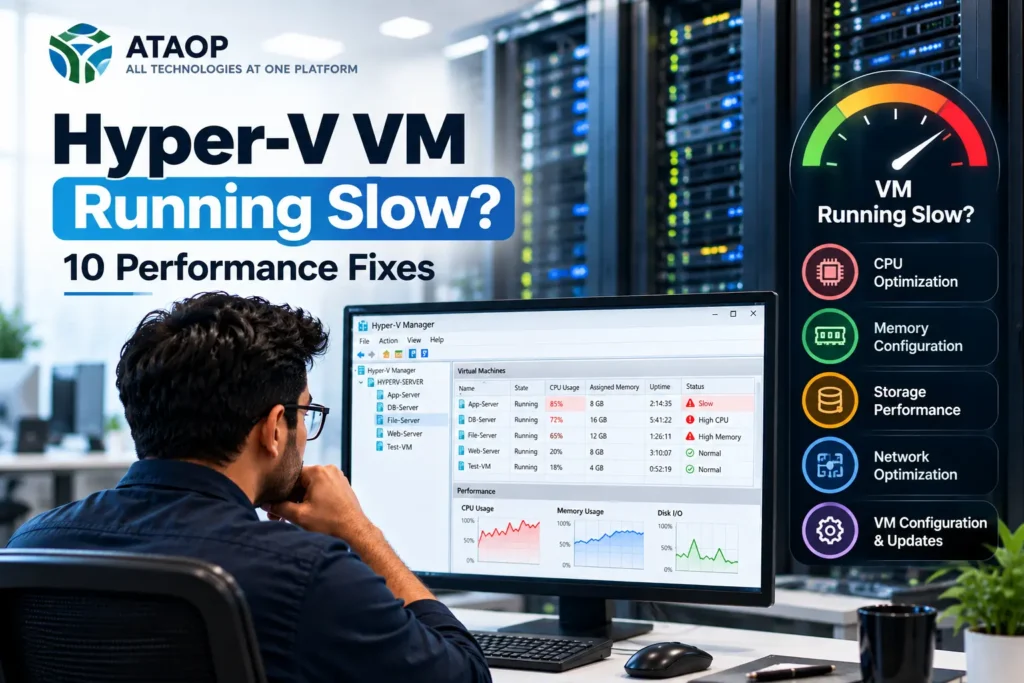
Is your Hyper-V virtual machine running slow, freezing unexpectedly or taking too long to respond? Slow virtual machines can affect business applications, database performance, file access and employee productivity.
Microsoft Hyper-V is a widely used virtualization platform that allows businesses to run multiple virtual machines (VMs) on a single physical server. It supports Windows Server environments, development workloads, testing infrastructure and business-critical applications.
However, even powerful Hyper-V hosts can experience performance problems because of insufficient resources, storage bottlenecks, incorrect virtual machine configurations or excessive workloads.
If you’re wondering “Why is my Hyper-V VM running slow?”, the solution isn’t always adding more RAM or upgrading the server.
In this guide, we’ll explore 10 practical Hyper-V performance fixes, including CPU optimization, Dynamic Memory configuration, virtual disk performance, storage troubleshooting and network improvements.
These steps apply to supported Hyper-V environments on Windows Server 2016, 2019, 2022 and 2025, although some settings and features vary by version.
Why Is My Hyper-V Virtual Machine Running Slow?
A Hyper-V VM may run slowly because of high CPU utilization, memory pressure, slow storage, network congestion, outdated integration components or resource contention between virtual machines.
When multiple VMs share the same physical hardware, one demanding workload can affect the performance of other workloads.
Common Symptoms of Hyper-V Performance Problems
- Virtual machines take too long to boot.
- Windows Server guests respond slowly.
- Applications freeze or become unresponsive.
- File transfers take longer than expected.
- CPU or disk utilization remains unusually high.
- Remote Desktop sessions experience delays.
- Database applications respond slowly.
- Multiple VMs become slow simultaneously.
Quick Answer: How Do You Fix a Slow Hyper-V VM?
Start by checking CPU, memory, storage and network utilization on both the Hyper-V host and the affected virtual machine.
Identify whether the problem affects one VM or several VMs. Then review virtual processor allocation, Dynamic Memory settings, storage latency, checkpoints and virtual network configuration.
The most effective Hyper-V performance optimization begins with identifying the actual bottleneck rather than increasing hardware resources without evidence.
1. Check CPU Usage on the Hyper-V Host and VM
High CPU utilization is a common reason for slow Hyper-V virtual machines.
When multiple VMs compete for physical CPU resources, applications may experience processing delays.
How to Check CPU Performance
Open Task Manager or Performance Monitor on the Hyper-V host.
Review processor utilization, running workloads and Hyper-V-specific performance counters.
Inside the affected VM, check whether a particular application or process is consuming excessive CPU resources.
Useful Hyper-V performance counters include:
- Hyper-V Hypervisor Virtual Processor
- Hyper-V Hypervisor Logical Processor
- Hyper-V Hypervisor Root Virtual Processor
How to Improve CPU Performance
Identify CPU-intensive applications, review VM workloads and examine virtual processor allocation.
Avoid assigning unnecessary virtual processors to every VM.
More virtual CPUs do not automatically improve performance, especially when the physical host is already under heavy load.
2. Optimize Hyper-V Virtual Processor Allocation
Each Hyper-V virtual machine uses virtual processors to execute workloads.
Incorrect vCPU allocation can create unnecessary resource contention.
For example, assigning eight virtual processors to several lightly loaded VMs may not improve their performance compared with smaller, properly sized allocations.
How to Change Virtual Processors
- Open Hyper-V Manager.
- Select the affected virtual machine.
- Open Settings.
- Select Processor.
- Review the number of virtual processors.
- Adjust the allocation according to workload requirements.
Some processor settings require the VM to be shut down before modification.
Best Practice
Start with the application’s recommended CPU requirements, monitor actual utilization and adjust based on measured performance.
For database servers and other demanding workloads, evaluate processor utilization over time rather than relying on a single reading.
3. Check Hyper-V Dynamic Memory Settings
Hyper-V Dynamic Memory allows supported virtual machines to receive memory according to configured limits and workload requirements.
However, incorrect minimum, startup or maximum memory settings may contribute to performance problems.
How to Review Dynamic Memory
Open:
Hyper-V Manager → VM Settings → Memory
Review the following:
- Startup RAM
- Minimum RAM
- Maximum RAM
- Memory buffer
- Memory weight
How to Fix Memory-Related Performance Issues
Check memory pressure inside the guest operating system and available physical memory on the host.
If the VM regularly experiences memory shortages, review whether its configured memory limits are appropriate.
For applications with strict memory requirements, such as certain database workloads, evaluate whether static memory allocation is more suitable.
Do not disable Dynamic Memory universally. Its suitability depends on the application and operating system.
4. Improve Hyper-V Virtual Hard Disk Performance
Slow storage is one of the most significant causes of Hyper-V VM performance issues.
Virtual machines depend on underlying physical storage to read and write operating system files, databases and application data.
If the storage subsystem experiences high latency, the VM may remain slow even when CPU and RAM usage appear normal.
Common Storage Bottlenecks
- Overloaded HDD arrays
- Insufficient storage IOPS
- High disk latency
- Storage controller limitations
- Nearly full storage volumes
- Excessive competing disk workloads
- Long virtual disk differencing chains
How to Improve Storage Performance
Review disk latency and throughput using Performance Monitor and the storage platform’s monitoring tools.
Where appropriate, consider SSD or NVMe storage for demanding workloads.
Also verify that the storage configuration provides sufficient capacity and resilience.
Fixed vs Dynamic VHDX
Fixed-size VHDX files allocate their configured capacity in advance and may offer more predictable storage behavior in some environments.
Dynamically expanding VHDX files grow as data is written and can improve storage utilization.
However, fixed-size disks are not automatically faster in every modern Hyper-V environment.
Choose the virtual disk type based on workload requirements, storage architecture and measured performance.
5. Remove Unnecessary Hyper-V Checkpoints Safely
Hyper-V checkpoints allow administrators to capture VM states for testing, maintenance and certain recovery scenarios.
However, maintaining unnecessary checkpoints can increase storage consumption and create longer differencing disk chains.
These chains may affect storage performance, especially under demanding workloads.
How to Check Existing Checkpoints
Open Hyper-V Manager and select the virtual machine.
Review the checkpoint tree.
Alternatively, use PowerShell:
Get-VMSnapshot -VMName “YourVMName”
Replace the example with the actual virtual machine name.
How to Manage Checkpoints
Review whether existing checkpoints are still required.
Use Hyper-V Manager or supported PowerShell commands to remove unnecessary checkpoints.
Hyper-V merges associated differencing disk data as part of checkpoint deletion.
Important: Never manually delete AVHDX files from a production VM’s storage folder.
Ensure sufficient free storage space and review backup dependencies before removing checkpoints.
6. Update Hyper-V Integration Components
Hyper-V integration services improve communication between the host and supported guest operating systems.
They provide functionality such as time synchronization, shutdown coordination, heartbeat monitoring and data exchange.
Modern Windows guests generally receive integration component updates through supported operating system update mechanisms.
How to Check Integration Services
Open PowerShell on the Hyper-V host and run:
Get-VMIntegrationService -VMName “YourVMName”
Review the status of the available integration services.
How to Improve Compatibility
Keep the guest operating system updated with supported patches.
Review integration service status and investigate reported failures.
For Linux virtual machines, use supported distributions and appropriate kernel drivers.
Integration services are important for functionality and compatibility, but updating them should not be treated as a guaranteed performance fix.
7. Optimize Hyper-V Virtual Network Performance
Network-related problems can make a Hyper-V VM appear slow even when its CPU, RAM and storage are functioning correctly.
This is especially noticeable when employees access applications, shared files or databases over the network.
Common Network Problems
- Network congestion
- Incorrect virtual switch configuration
- Insufficient physical network bandwidth
- Packet loss
- Network adapter driver issues
- Incorrect VLAN configuration
How to Troubleshoot
Review the VM’s virtual network adapter configuration.
Check physical network utilization, switch port errors and host network adapter statistics.
Use appropriate network testing tools to identify packet loss, latency and throughput limitations.
Recommended Improvements
Use supported synthetic Hyper-V network adapters for modern guest operating systems.
Keep physical NIC drivers and firmware updated according to vendor recommendations.
Review VLAN, virtual switch and network security configurations.
Features such as VMQ, vRSS and SR-IOV may improve performance in suitable environments, but availability depends on hardware, drivers and workload compatibility.
8. Review Hyper-V Host Resource Overcommitment
Hyper-V allows multiple VMs to share the same physical host resources.
However, excessive resource allocation can create performance contention.
For example, a server running several demanding VMs may experience slowdowns when their combined workloads exceed available CPU, memory or storage capacity.
What Should You Check?
Review:
- Total physical memory
- VM memory consumption
- Physical CPU utilization
- Storage throughput and latency
- Network utilization
- Host operating system requirements
How to Fix Resource Contention
Identify which VMs are consuming the most resources.
Consider redistributing workloads, optimizing applications or upgrading host capacity when monitoring confirms a sustained shortage.
For environments with multiple Hyper-V hosts, evaluate whether workload migration or load balancing is appropriate.
Avoid making large allocation changes during production hours without assessing their impact.
9. Check Antivirus and Security Software Impact
Security software can sometimes contribute to Hyper-V performance problems, particularly when real-time scanning interacts with virtualization storage and management operations.
However, disabling antivirus protection is not an appropriate general solution.
How to Troubleshoot
Review security software performance metrics and scan activity.
Check whether the installed security product supports the Hyper-V host operating system and workload.
Follow the security vendor’s current recommendations for Hyper-V exclusions and scanning configuration.
Important Security Precaution
Do not exclude entire VM storage locations or disable protection without reviewing the security implications.
Any exclusions should be narrowly scoped, supported by the vendor and approved according to the organization’s security policies.
10. Update Hyper-V Host, Drivers and Firmware
Outdated host components can contribute to performance, compatibility and stability problems.
These may include:
- Windows Server updates
- Storage controller drivers
- Network adapter drivers
- Server BIOS or UEFI firmware
- Storage firmware
- Hypervisor-related platform updates
How to Improve Host Stability
Review available Windows Server updates and hardware vendor advisories.
Check system event logs for hardware or driver-related warnings.
Before installing major firmware or driver updates, confirm compatibility with the server model and Hyper-V environment.
For production systems, plan a maintenance window and verify that suitable backups and recovery procedures are available.
Firmware and driver updates may require a host restart.
Hyper-V Performance Troubleshooting Checklist
| Component | What to Check | Recommended Action |
| CPU | High utilization or contention | Review vCPU allocation |
| Memory | Guest memory pressure | Adjust memory configuration |
| Storage | High latency or insufficient IOPS | Optimize storage performance |
| VHDX | Disk type and storage usage | Review virtual disk configuration |
| Checkpoints | Unnecessary checkpoints | Remove safely using Hyper-V |
| Integration services | Missing or unhealthy services | Review guest compatibility |
| Networking | Latency, congestion or packet loss | Inspect virtual switch and NICs |
| Host resources | Resource contention | Rebalance workloads |
| Security software | Excessive scanning overhead | Review supported configuration |
| Updates | Outdated drivers or firmware | Apply validated updates |
How to Monitor Hyper-V Performance Using PowerShell
PowerShell can help administrators review Hyper-V virtual machine configurations and resource information.
List Virtual Machines
Get-VM
Check VM Processor Configuration
Get-VMProcessor -VMName “YourVMName”
Check VM Memory Configuration
Get-VMMemory -VMName “YourVMName”
Check Virtual Hard Disks
Get-VMHardDiskDrive -VMName “YourVMName”
Check VM Resource Metering
Get-VM | Measure-VM
Resource metering must be enabled for relevant VM usage statistics to be collected.
You can enable it using:
Enable-VMResourceMetering -VMName “YourVMName”
Run these commands in an elevated PowerShell session on a Hyper-V host with the required management components.
For detailed performance diagnosis, combine PowerShell information with Performance Monitor, Event Viewer and guest operating system metrics.
Hyper-V Performance Optimization Services in Noida – ATAOP
Businesses using Hyper-V virtualization for ERP software, databases, file servers and business applications need reliable virtual infrastructure.
ATAOP (OPC) Private Limited, an IT support company serving Noida, Greater Noida, Delhi NCR and businesses across India, provides server management and IT infrastructure services.
Our solutions include:
- Windows Server installation and maintenance
- Hyper-V virtualization support
- Virtual machine performance troubleshooting
- Server hardware and storage assessments
- IT infrastructure optimization
- Backup and disaster recovery planning
- Managed IT support and preventive maintenance
Whether your organization is experiencing slow virtual machines, storage bottlenecks or server performance problems, identifying the root cause can help improve infrastructure reliability.
For Hyper-V troubleshooting and server support enquiries, visit https://ataop.com/.
Frequently Asked Questions
Why is my Hyper-V VM running slow even with enough RAM?
A VM can experience poor performance because of CPU contention, high disk latency, network problems or inefficient applications, even when sufficient memory is available.
How many virtual processors should I assign to a Hyper-V VM?
The appropriate number depends on the guest operating system, application requirements and available host CPU resources. Start with a reasonable allocation and adjust based on monitoring.
Does Dynamic Memory slow down Hyper-V?
Dynamic Memory does not inherently make every VM slower. Performance problems may occur when the VM cannot obtain sufficient memory or the application requires more predictable memory allocation.
Is fixed VHDX faster than dynamic VHDX?
Fixed-size VHDX may offer more predictable behavior for certain workloads, but performance differences depend on the storage platform and workload. Benchmarking is more reliable than assuming one format is always faster.
Can Hyper-V checkpoints reduce VM performance?
Yes. Large or complex differencing disk chains can increase storage overhead. Unnecessary checkpoints should be reviewed and removed using supported Hyper-V tools.
Does Hyper-V perform better on SSD or HDD?
SSD and NVMe storage generally provide lower latency and better random I/O performance than traditional HDDs, making them useful for demanding virtual machine workloads.
How do I check Hyper-V VM performance?
Use Performance Monitor, Hyper-V Manager, PowerShell, Event Viewer and monitoring tools inside the guest operating system to examine CPU, memory, disk and network behavior.
Does ATAOP provide Hyper-V support in Noida?
ATAOP provides Windows Server, virtualization and IT infrastructure support services for businesses in Noida, Greater Noida and Delhi NCR.
Conclusion
If your Hyper-V VM is running slow, the best solution is to investigate the underlying performance bottleneck rather than immediately purchasing additional hardware.
Start by monitoring CPU, memory, storage and network utilization on both the host and guest operating systems.
Review virtual processor allocation, Dynamic Memory settings, VHDX performance, checkpoints and integration components.
Also examine host resource contention, security software configuration and outdated drivers.
A properly configured Hyper-V environment can help businesses improve application responsiveness, use hardware resources efficiently and reduce avoidable operational disruptions.
For businesses looking for Hyper-V performance optimization and Windows Server support in Noida, ATAOP (OPC) Private Limited offers IT infrastructure and managed IT services.
Better virtualization performance starts with accurate monitoring, balanced resource allocation and proactive server management.